

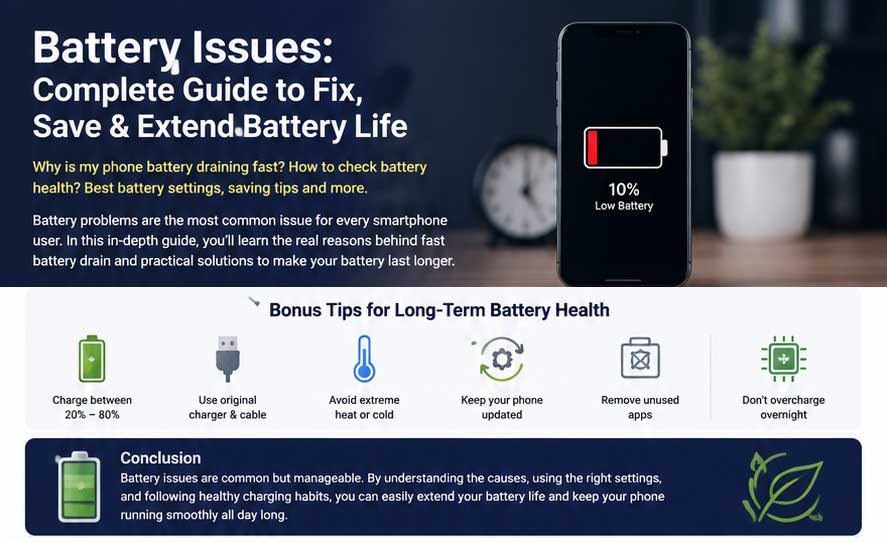
Watching your smartphone’s battery decline from 100% to 20% in a matter of hours is one of the most annoying things. Battery troubles are one of the most frequent problems that smartphone users encounter, regardless of whether they use an iPhone or an Android phone.
Many individuals think that the battery is defective right away. In actuality, however, rather than a broken battery, quick energy drain is frequently brought on by software settings, background apps, bad charging practices, overheating, or out-of-date system upgrades.
The good news is that you don’t need to replace your phone to fix the majority of battery-related issues. You can greatly increase battery life, cut down on wasteful power use, and prolong the life of your gadget by comprehending how your battery functions and implementing a few straightforward changes.
The optimal settings to extend battery life, the true causes of rapid battery depletion, and useful advice for both Android and iPhone users are all covered in this tutorial.
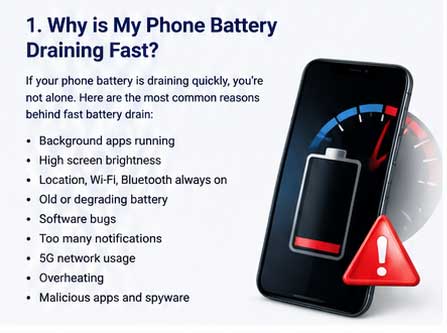
Why Is My Phone Battery Draining Fast?
You’re not alone if the battery on your phone runs out far more quickly than it used to. Over time, battery performance naturally declines, but a number of variables might exacerbate the issue.
The most frequent causes of your phone’s rapid power loss are listed below.
Background Apps Running Continuously
Even after you close them, a lot of apps keep operating in the background. Battery power is regularly used by social media apps, messaging services, navigation apps, and cloud backup services to sync data, check notifications, and refresh content.
Best Solution Suggested:
- Close apps you don’t use regularly.
- Restrict unnecessary background activity.
- Remove apps you rarely use.
High Screen Brightness
One of the biggest battery consumers is your display. Battery life can be significantly shortened by maintaining the brightness at its highest level throughout the day.
Best Solution Suggested:
- Enable Auto Brightness or Adaptive Brightness.
- Reduce brightness indoors.
- Use Dark Mode on OLED displays whenever possible.
5G, GPS, Bluetooth and Wi-Fi Always Enabled
Particularly in situations where the signal is weak, wireless features continuously look for adjacent connections. Battery consumption rises as a result.
Best Solution Suggested:
Turn off features you aren’t actively using:
- Bluetooth
- GPS
- NFC
- Personal Hotspot
- Wi-Fi scanning
- Nearby device scanning
Poor Mobile Signal
Your phone must work harder to stay connected to the network when there is a weak cellular signal, which greatly increases battery depletion.
Best Solution Suggested:
- Use Wi-Fi whenever available.
- Enable Airplane Mode in areas with no coverage.
- Avoid leaving your phone searching for a signal for long periods.
Software Bugs
Battery performance can occasionally be impacted by problems introduced by a recent software update. Similarly, antiquated operating systems might not effectively control power.
Best Solution Suggested:
- Keep your phone updated with stable software releases.
- Install app updates regularly.
- Restart your phone after major updates.
Old or Worn-Out Battery
The lifespan of every rechargeable lithium-ion battery is finite. Its maximum capacity progressively drops over hundreds of charge cycles. Common signs of battery aging include:
- Battery drains unusually fast.
- Phone shuts down unexpectedly.
- Charging percentage jumps or drops suddenly.
- Device becomes hot during normal use.
Suggestion: It could be time to change the battery if these symptoms keep happening.
Unnecessory Notifications
Every notification of various mobile apps wakes up the screen, activates the processor, and uses network resources. Focus on such apps:
- Shopping apps
- Games
- Promotional apps
- Unused social media apps
Suggetion: Go to mobile app notifications for apps that are not essential and disable the notifications.
Keep Care of Overheating
One of the main threats to smartphone batteries is heat. Fast charging, intense multitasking, gaming, and bright sunlight can all cause your phone’s temperature to rise.
Best Solution Suggeted:
- Remove the phone case while charging if the device gets very hot.
- Avoid charging under pillows or blankets.
- Keep your phone away from direct sunlight.
- Pause heavy gaming while charging.
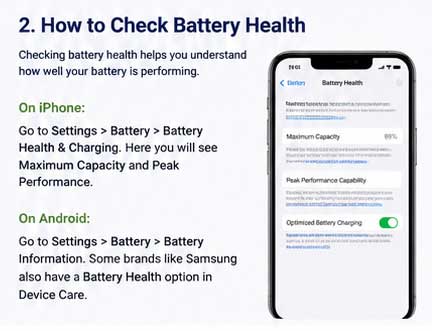
Battery Health Check
Knowing the condition of your battery makes it easier to identify whether hardware or software is the problem. Under typical usage, a healthy battery should continue to deliver dependable performance all day.
How to Check Battery Health on iPhone?
Apple provides a built-in Battery Health feature.
Go to: Settings → Battery → Battery Health & Charging
- Here you’ll find:
- Maximum Capacity
- Peak Performance Capability
- Optimized Battery Charging status
What Does Maximum Capacity Mean?
- 100–90%: Excellent condition
- 89–85%: Normal wear
- 84–80%: Noticeable reduction in battery life
- Below 80%: Consider replacing the battery for the best performance
When the maximum capacity falls below 80%, Apple usually advises battery service, particularly if you’re having unplanned shutdowns or noticeably shorter battery life.
How to Check Battery Health on Android?
The options for battery health differ based on the manufacturer. You may begin on a lot of Android devices by going to:
Go to: Settings → Battery
Under Device Care or Battery Information, certain models also offer more battery diagnostics.
Reputable diagnostic apps can assess battery state by examining charging cycles, temperature, and capacity if your phone does not immediately display battery health.
Indications That Your Android Battery May Be Deteriorating
- Battery drains far more quickly now.
- It takes a very long time to charge.
- Unexpected variations occur in battery percentage.
- When performing routine tasks, the phone gets hot.
- Even with the remaining battery percentage, the gadget shuts off.
Quick Battery Health Checklist
Ask these queries to yourself:
- Is the lifespan of your battery much shorter than it was a year ago?
- When you use your phone lightly, does it get hot?
- Does the battery percentage abruptly increase?
- Does the phone stop working before it hits zero?
- With typical usage, do you need to charge more than twice a day?
If you said “yes” to more than one of these questions, your battery might need to be optimized or replaced if it is severely damaged.
Checkout Our Next Guide
How to Save Battery Life, Best Battery Settings, Charging Tips & Common Battery Problems

