

Save Mobile Phone Battery Life: In this article we will cover the Best Battery Settings, Charging Tips & Common Battery Problems one by one step. We looked at the most frequent causes of rapid battery loss and discovered how to verify the condition of an Android or iPhone battery in the first section of this tutorial. It’s time to concentrate on workable fixes that can greatly extend battery life without interfering with your regular smartphone use.
Many customers think that the best way to solve the problem is to always have Battery Saver mode activated. Actually, smart settings, sensible app management, and healthy charging practices are all part of battery optimization.
We looked at the most frequent causes of rapid battery loss and discovered how to verify the condition of an Android or iPhone battery in the first section of this tutorial. It’s time to concentrate on workable fixes that can greatly extend battery life without interfering with your regular smartphone use.
Many customers think that the best way to solve the problem is to always have Battery Saver mode activated. Actually, smart settings, sensible app management, and healthy charging practices are all part of battery optimization.
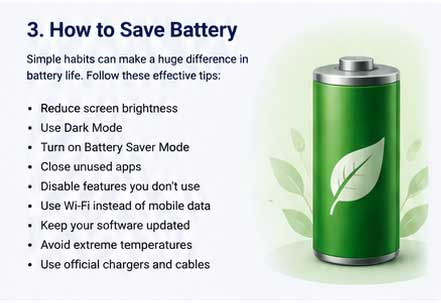
How to Save Battery Life
You don’t always need a new battery if your phone has trouble lasting the entire day. Battery life can often be increased by several hours with a few easy adjustments.
1. Reduce Screen Brightness
On the majority of smartphones, the display uses the most power.
Use Adaptive Brightness, which automatically modifies the screen based on environmental light, rather than maintaining brightness at 100%. Generally, 30 to 50% brightness is enough inside.
Tips: Darker interfaces and wallpapers help lower power consumption on OLED screens since black pixels use less energy.
2. Use Dark Mode
Dark Mode is not merely an esthetic choice. Because dark pixels use less electricity than bright ones, it can lower battery consumption on phones with OLED or AMOLED displays.
Turn on Dark Mode in:
- Display Configurations
- Compatible apps
- Browser (if one is available)
If you routinely use your phone at night, this is extremely helpful.
3. Limit Background App Activity
Long after you stop using them, a lot of apps still sync data, check notifications, refresh information, and monitor your position. The following apps frequently use battery power in the background:
- TikTok
- Snapchat
- Google Photos
- Weather apps
- Navigation apps
- Email clients
For Android Go to: Settings → Apps → Battery → Background Activity
Restrict unnecessary background usage for apps you don’t need running constantly.
For iPhone Go to: Settings → General → Background App Refresh
For apps that don’t need real-time updates, turn off Background App Refresh.
4. Turn on the Battery Saving mode
By reducing background processes, visual effects, and superfluous processing, Battery Saver lowers power consumption. Both the iPhone and Android have built-in battery-saving modes that kick in when the battery runs low.
Utilize a battery saver:
- While travelling
- While travelling
- When the battery is less than 20%
- When there is no way to charge
5. Update Your Phone
Software updates that enhance battery optimization and address issues are often released by manufacturers.
Install it every time:
- Updates on security
- Updates for stable operating systems
- Updates for apps
Don’t spend a lot of time using out-of-date software.
6. Uninstall Applications You Don’t Use
Applications that are not in use continue to run in the background and take up storage. Every several months:
- Remove any programs that aren’t being used.
- Remove any files that aren’t needed.
- Eliminate duplicate images and videos.
Often, a phone that is cleaned operates more effectively.
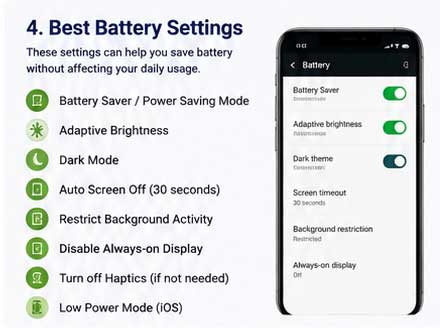
Best Battery Settings for Android & iPhone
Without having a major impact on your regular use, these settings can considerably increase battery life.
| Setting | Recommended |
|---|---|
| Adaptive Brightness | ✅ ON |
| Dark Mode | ✅ ON (OLED displays) |
| Battery Saver | Auto at 20% |
| Screen Timeout | 30 Seconds |
| Always-On Display | OFF (if battery life is a priority) |
| Background App Refresh | OFF for unused apps |
| Location Access | Only While Using App |
| Bluetooth | OFF when unused |
| NFC | OFF when unused |
| Wi-Fi Scanning | OFF if unnecessary |
| Auto Downloads | Wi-Fi Only |
| Vibration Strength | Medium or Low |
Best Practices for Charging
The lifespan of your phone’s battery is influenced by both how frequently and how you charge it.
Long-term battery wear can be slowed with good charging practices.
Before the battery runs out entirely, charge it.
It is not necessary to completely discharge modern lithium-ion batteries before charging them.
Battery stress can be increased by frequent deep discharges (0%).
Recharging the battery when it reaches about 20–30% is a sensible habit.
Avoid Excessive Heat While Charging
Heat accelerates the process of battery deterioration.
To lower the temperature:
- If your phone gets excessively hot, take off any thick protective cases.
- While the phone is charging, place it on a firm surface.
- Steer clear of charging beneath blankets or pillows.
- Keep the gadget out of direct sunlight.
Use High-quality Chargers
Whenever possible:
- Use the original charger.
- Use certified replacement chargers from reputable brands.
- Replace faulty charging cables immediately.
Cheap or low-quality accessories may not charge properly and can overheat.
Avoid Heavy Gaming While Charging
Playing games while charging causes both the processor and the battery to generate heat simultaneously. Prolonged and repeated exposure to high temperatures can reduce the battery’s lifespan.
If possible:
- Complete the charging process first.
- Play resource-intensive games only after that.
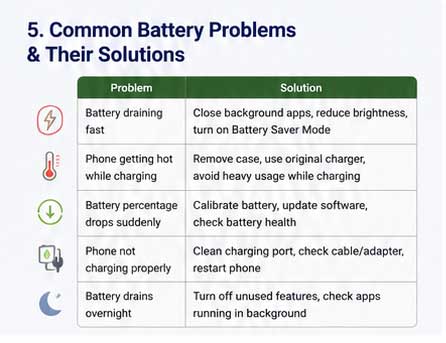
Common Battery Problems & Their Solutions
I you find there is problem about “Overnight Battery Drain” then it may be because of some reasons:
- Background applications
- Inadequate cell signal
- Backups that happen automatically
- Too many notifications
- Location-based services
Don’t worry about, here is best solution:
- Turn on Focus Mode or Sleep Mode.
- If not in use, turn off Bluetooth and Wi-Fi.
- Limit background activities.
- Avoid using the phone in heated conditions.
If you face “Phone Heating” problem then there may be some reasons behind it:
- Playing games
- Recording with a camera
- Quick charging
- Bugs in the software
- Direct sunlight
Best solution for it:
- Shut down demanding apps.
- Let the gadget cool on its own.
- Operating system should be updated.
- Dim the brightness of the screen.
If you face “Too Slow Charging” problem, then there may possible causes:
- Low-quality charger
- Damaged cable
- Dirty charging port
- Background processes
Best solution to fix it:
- Clean the charging port carefully.
- Use a compatible fast charger if supported.
- Avoid using the phone while charging.
I you face “Battery % Changes Suddenly” then there may be some reasons behind it:
- Aging battery
- Software calibration issue
- Battery degradation
Best solution if for you:
- Restart the device.
- Install updates.
- Monitor battery health.
- Replace the battery if the issue persists and health is significantly reduced.
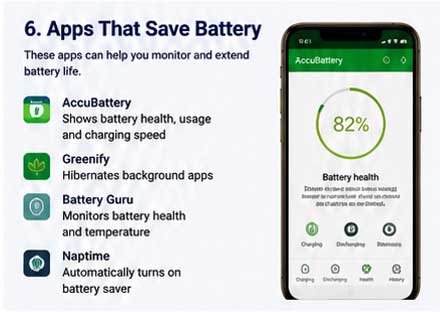
Because they depend on GPS, cameras, background syncing, or constant network access, some apps inherently require more energy. Common examples include:
- Social media apps
- Video streaming services
- Navigation apps
- Ride-sharing apps
- Video calling apps
- Cloud backup services
- High-end mobile games
Instead of removing these apps, make sure they only consume resources when necessary by checking their background activity and permissions.
Battery Myths vs Facts
Myth 1: Closing Every App Saves Battery
Fact: Contemporary iOS and Android systems are built with effective memory management in mind. Apps that are frequently force-closed may actually use more battery life because the phone must reopen them from scratch.
Myth 2: You Must Charge to 100% Every Time
Fact: Charging is handled automatically by modern smartphones. It’s acceptable to sometimes charge the phone to 100%, but it’s not required to leave it plugged in for extended periods of time once it’s fully charged.
Myth 3: Fast Charging Always Damages Batteries
Fact: Temperature and power management systems are among the certified fast charging technologies. They are made to safely charge under normal circumstances.
Myth 4: Third-Party Chargers Are Always Unsafe
Fact: Reputable manufacturers’ high-quality chargers that fit the requirements of your phone are usually safe. Uncertified, low-quality accessories are more dangerous.
Quick Battery Optimization Checklist
Before replacing your battery, make sure you’ve completed these steps:
- ✅ Enable Adaptive Brightness
- ✅ Turn on Dark Mode (if using OLED)
- ✅ Reduce Screen Timeout
- ✅ Restrict Background App Refresh
- ✅ Remove unused apps
- ✅ Keep software updated
- ✅ Use Battery Saver when needed
- ✅ Avoid overheating
- ✅ Charge with quality accessories
- ✅ Monitor battery health regularly
Checkout Our Next Guide
When Should You Replace Your Battery? Long-Term Maintenance, FAQs

